
When we introduced MySQL Studio, the goal was to bring the common parts of database development and analysis into one OCI workspace: SQL authoring, schema exploration, results visualization, and Ask Studio. The next step is making that workspace more useful during the everyday flow of MySQL work.
For many MySQL developers, DBAs, and application teams, the hard part is not just connecting to a database or running a single query. It is moving from a business question to correct SQL, checking that the SQL does what was intended, understanding obvious query issues, and turning the result into something that can be reused.
This post follows that path with an OLTP-style airportdb schema. We will start with a question about airline booking revenue, use SQL Intelligence while writing and reviewing SQL, inspect an execution warning, visualize the result, and then use Ask Studio to turn a related question into editable SQL and a chart.
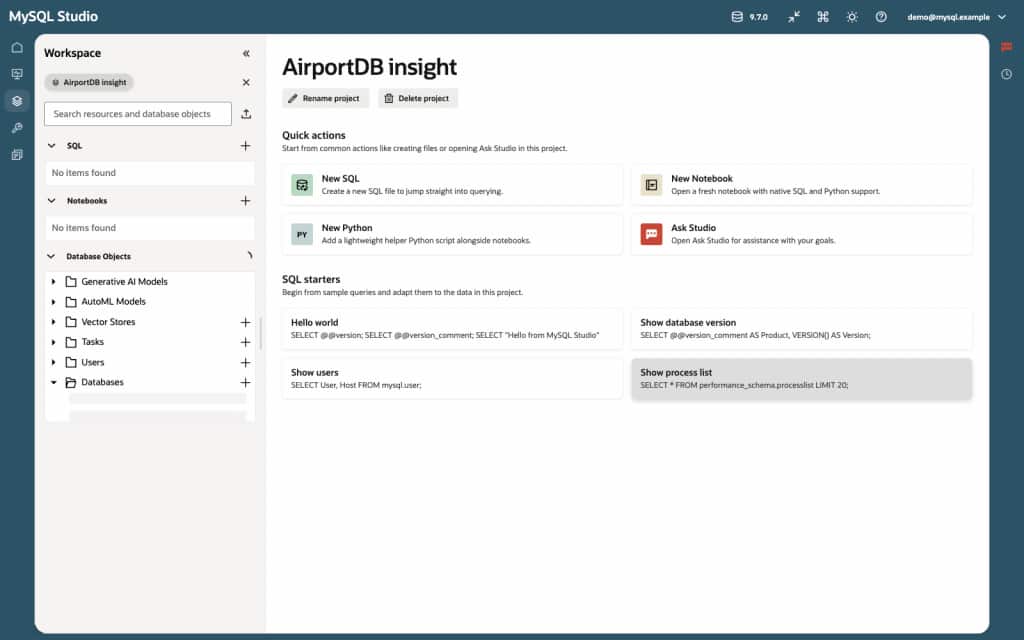
Start with a Transactional Question
Assume an application team wants to understand airline booking revenue for flights on a specific day. The underlying schema is operational: bookings, flights, airlines, passengers, aircraft, airports, and related details.
A useful first question is:
Which airlines had the highest booking revenue for flights on September 1, 2015?
That question is simple to ask, but the SQL still needs to be precise. It needs to join booking, flight, and airline; filter on the flight departure date; aggregate bookings and revenue; and order the results so the highest revenue airlines are easy to see.
In MySQL Studio, you can stay in the SQL workspace while building that query. SQL Intelligence helps with completion as you type, including SQL functions and schema-aware objects, so the editor can help with both the shape of the statement and the details of the schema.
For example, while building an aggregate query, the editor can complete COUNT from a partial COU and show the function signature and description inline:
SELECT
    a.airlinename,
    COU
FROM airportdb.booking b
JOIN airportdb.flight f
    ON f.flight_id = b.flight_id
JOIN airportdb.airline a
    ON a.airline_id = f.airline_id
WHERE f.departure >= '2015-09-01'
    AND f.departure < '2015-09-02'
GROUP BY a.airlinename;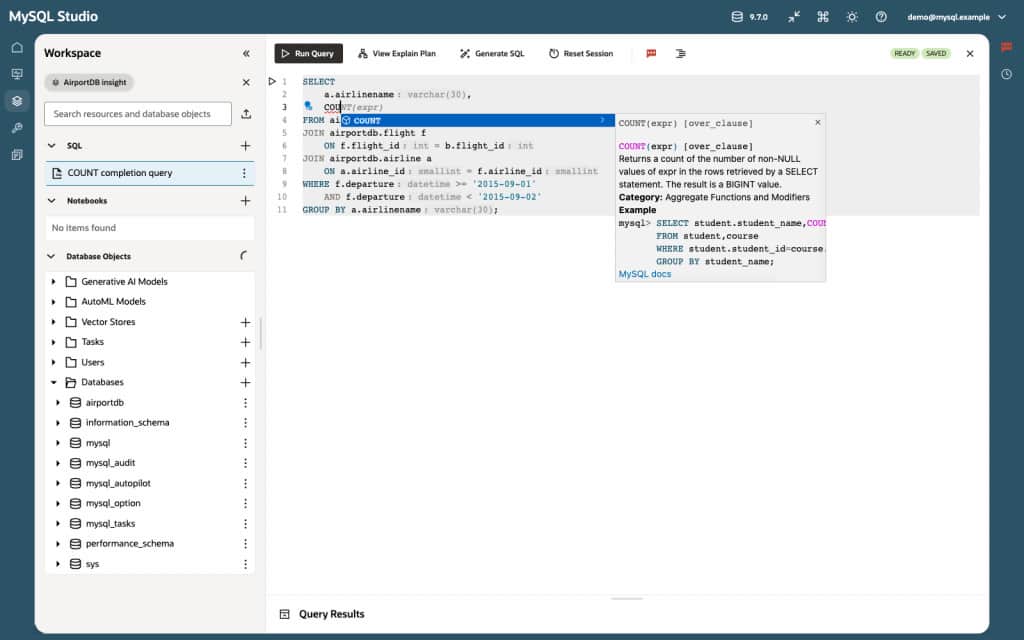
This is a small interaction, but it matters in real SQL work. Completion helps keep the user in flow, and inline help reduces the need to switch to separate documentation for common function details while writing the query.
Catch SQL Problems Before Running the Query
The next step is review. A common source of SQL errors is using the name you expect instead of the name that actually exists in the schema. In this example, a user might write airline_name, but the airportdb.airline table uses airlinename.
SELECT
    a.airline_name,
    COUNT(*) AS bookings,
    ROUND(SUM(b.price), 2) AS revenue
FROM airportdb.booking b
JOIN airportdb.flight f
    ON f.flight_id = b.flight_id
JOIN airportdb.airline a
    ON a.airline_id = f.airline_id
WHERE f.departure >= '2015-09-01'
    AND f.departure < '2015-09-02'
GROUP BY a.airline_name
ORDER BY revenue DESC
LIMIT 10;
SQL Intelligence can flag this kind of issue in the editor, before you spend time running the query and reading a database error. The user still controls the SQL, but Studio brings the problem closer to where the fix happens.
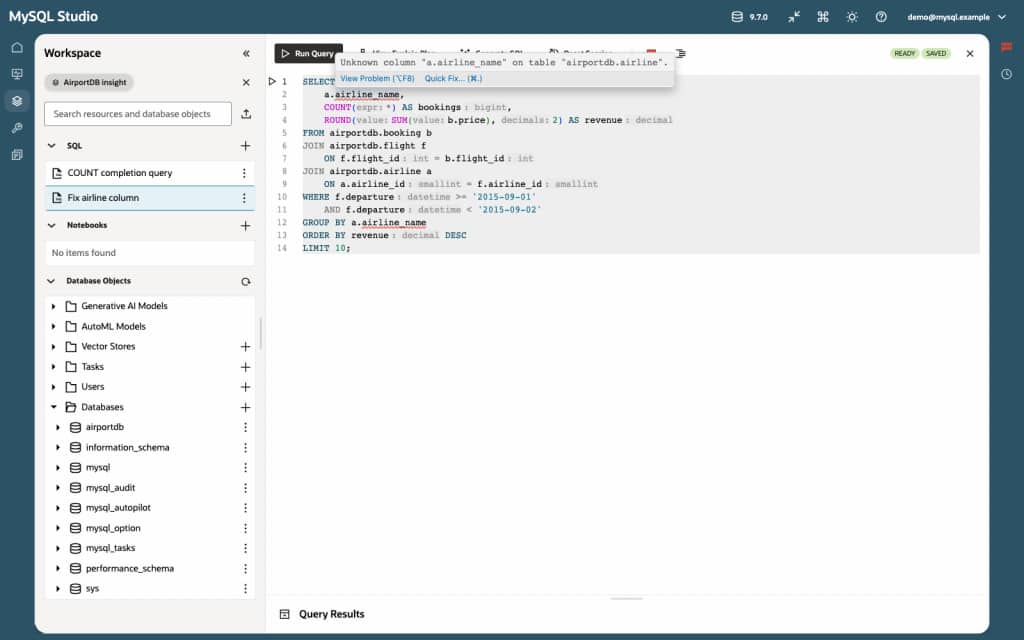
After correcting the column name, the reviewed query is ready to run:
SELECT
    a.airlinename,
    COUNT(*) AS bookings,
    ROUND(SUM(b.price), 2) AS revenue,
    ROUND(AVG(b.price), 2) AS avg_ticket_price
FROM airportdb.flight f
JOIN airportdb.booking b
    ON b.flight_id = f.flight_id
JOIN airportdb.airline a
    ON a.airline_id = f.airline_id
WHERE f.departure >= '2015-09-01'
    AND f.departure < '2015-09-02'
GROUP BY a.airlinename
ORDER BY revenue DESC
LIMIT 10;
Understand Query Feedback in Context
Correct SQL is not always efficient SQL. When you are working with transactional tables, it is useful to see obvious execution feedback close to the query instead of switching to a separate tuning workflow too early.
For example, an explain-plan warning can highlight when a query path includes a full table scan. That does not automatically mean the query is wrong. It gives the developer or DBA a signal to inspect the filter, join conditions, available indexes, and expected data volume.
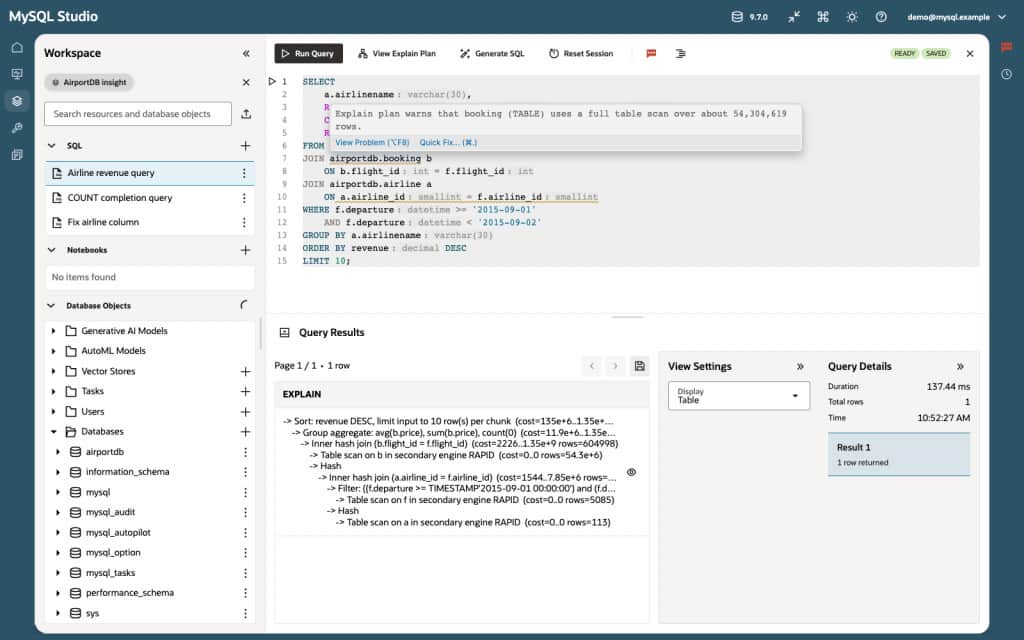
The point is not that Studio replaces database design judgement. It gives you timely feedback while the query is still fresh, so you can decide whether the statement is appropriate for an ad hoc analysis, needs a narrower predicate, or should be optimized before it becomes part of a repeatable workflow.
Run the Query and Visualize the Result
Once the SQL is reviewed, the result should answer the original question clearly. In this example, the query returns the top airlines by booking revenue for September 1, 2015, along with booking count and average ticket price.
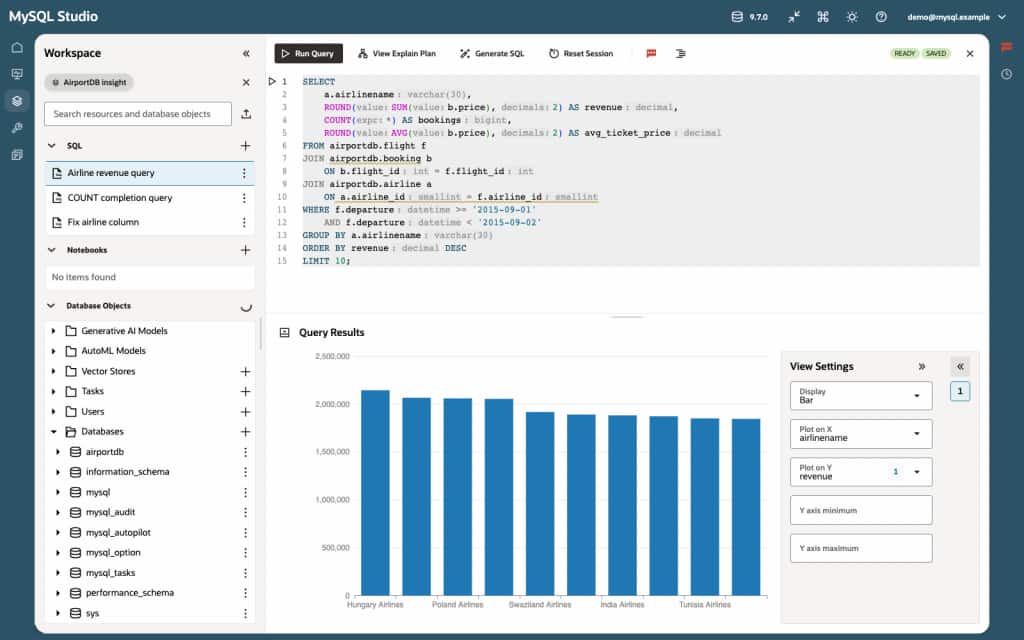
The result grid is useful for checking exact values, while the chart makes the pattern easier to compare at a glance, especially when the result is going into a discussion with an application owner, operations team, or another DBA.
This is where the workspace model helps. The user did not need to leave the SQL context to move from a question, to an editable query, to a result, to a visual summary. The SQL remains available for review and reuse.
Use Ask Studio for a Starting Point You Can Review
SQL Intelligence helps when you are already writing SQL. Ask Studio helps when you want to start from a question.
For example, a user can ask:
Using the airportdb schema, show the airlines with the highest booking revenue for flights on September 1, 2015. Include the number of bookings and average ticket price.Ask Studio can propose SQL that the user reviews before applying. That review step is important. AI-generated SQL should be treated as a starting point: inspect the tables, joins, filters, and aggregation before running it against your database.
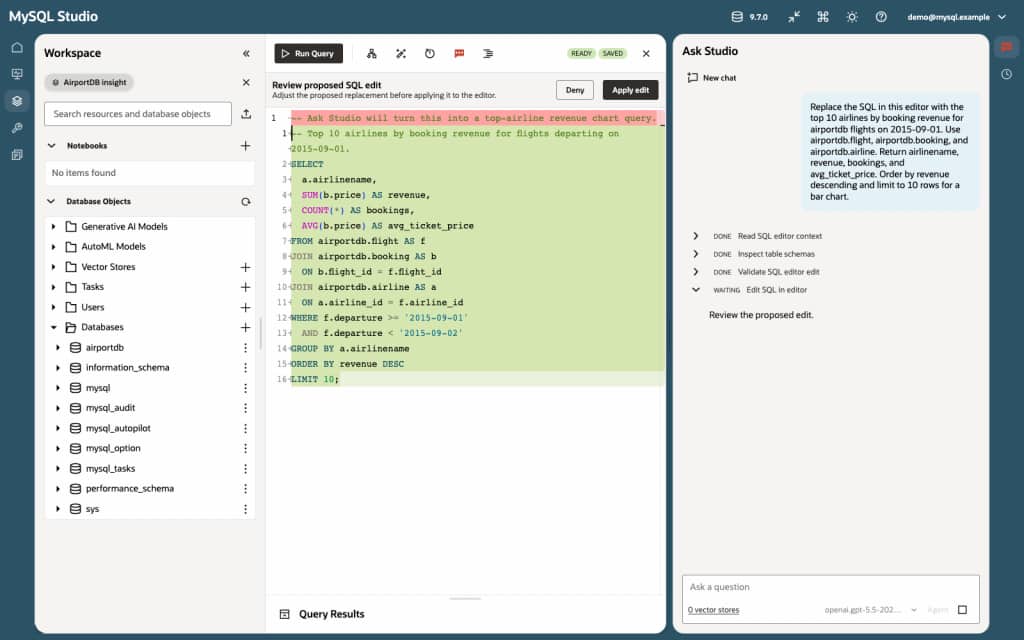
In this flow, Ask Studio is not a separate destination. It works alongside SQL Explorer so the generated query can become normal, editable SQL. The user can accept the edit, adjust it, run it, and continue refining the result in the same workspace.
Go from Follow-up Question to Chart
After the first result, the next question is often more specific. A revenue ranking might lead to:
How does booking revenue vary by airline for this date?
Or:
Show this result as a bar chart so I can compare the top airlines.
Ask Studio can help turn that follow-up into a chart-oriented result while still keeping the user in control of the SQL and output. The user reviews the proposed SQL or edit, runs it, and checks that the chart matches the intended question.
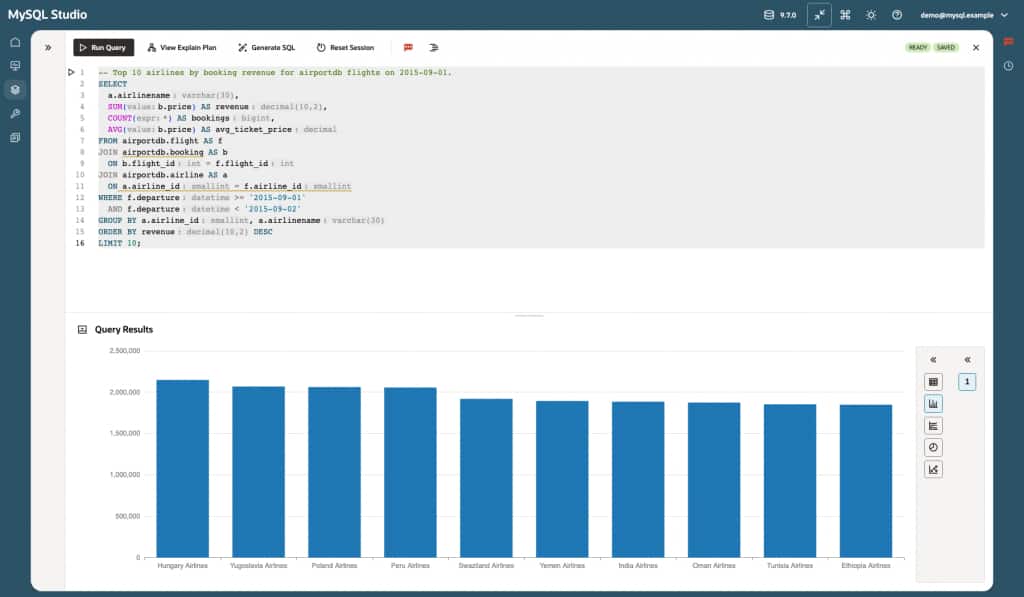
The practical value is continuity. You can start with a business question, use SQL Intelligence to write and fix the SQL, use execution feedback to inspect obvious issues, and use Ask Studio to continue the analysis without moving the work across multiple disconnected tools.
Make the Analysis Repeatable
An ad hoc answer is useful once. A reviewed query is useful again.
With MySQL Studio, the same workspace can hold the SQL, the result, and the surrounding analysis. A developer can keep the query as part of a project, refine it later, and return to the same reviewed statement when the question comes up again.
For a MySQL OLTP team, that repeatability matters. The query that starts as “What happened yesterday?” often becomes “Can we check this every week?” or “Can we share the logic behind this dashboard?” Keeping the reviewed SQL close to the analysis reduces the amount of translation between tools and makes the workflow easier to audit.
Conclusion
MySQL Studio is becoming a more capable place to do the work around MySQL, not just a place to run a statement. For OLTP application teams, the improved workflow is straightforward:
- Start from an operational question.
- Write or generate SQL in the Studio workspace.
- Use SQL Intelligence to complete, diagnose, and refine the statement.
- Review AI-proposed edits before applying them.
- Run the query, inspect feedback, and visualize the result.
- Keep the SQL and analysis together so the work can be repeated.
That is the path from question to insight: fewer context switches, more reviewable SQL, and a workspace designed for the way MySQL teams actually investigate their data.
Try the workflow in MySQL Studio with one of your own MySQL OLTP schemas. Start with a question your team already asks, review the generated or edited SQL, and turn the result into a repeatable analysis inside the same workspace.
Access MySQL Studio in your OCI tenancy: https://cloud.oracle.com/
Availability note: To use the new MySQL Studio capabilities described in this post, you can create a new DB system. If your existing DB system has not had maintenance since this blog was posted, upgrade that DB system.
Review the official documentation:
- MySQL Studio documentation: https://dev.mysql.com/doc/dev/mysql-studio/latest/
- Enable or disable MySQL Studio: https://docs.oracle.com/en-us/iaas/mysql-database/doc/enabling-or-disabling-mysql-studio.html
- Connect to MySQL Studio: https://docs.oracle.com/en-us/iaas/mysql-database/doc/connecting-mysql-studio.html
- MySQL HeatWave: https://dev.mysql.com/doc/heatwave/en/